Resize image
Change the size of one photo or many without distortion. Everything runs in your browser: no file is uploaded.
Drop images here
JPG, PNG, WebP, GIF, BMP or AVIF. One image or many at once. Ctrl+V pastes a screenshot straight from the clipboard.
No photo at hand? Try one of these:
Free, no sign-up · Your photo never leaves your device · Several photos at once
Common sizes
Social media
Documents
Physical size at 300 dpi. Check the issuing authority’s rules before you submit.
How to resize an image
- Drop images on the area above, choose files, or paste a screenshot with Ctrl+V.
- Under Size, set a width or height in pixels, a scale in percent, or a ready-made frame.
- Under Format & weight, pick JPG, PNG or WebP and adjust the quality or set a target in KB.
- Check dimensions and weight in the bottom bar and download. With several images, the download is a ZIP.
The preview shows the actual output file: the weight on screen is the weight of the file you download, not an estimate.
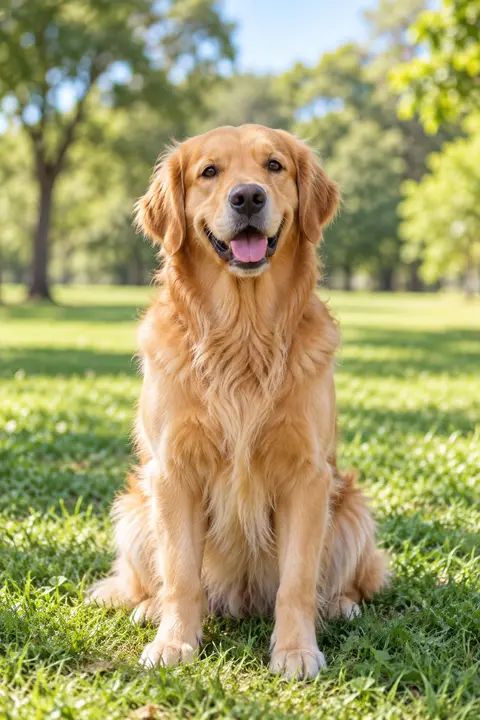 Before
1024 × 1536 px220 KB
AfterAfter: 512 × 768 px≈ 90 KB59% smaller
Why use Resize.photos
- Your photo stays on your device
- There is no upload in the code: the browser reads, resizes and writes the image itself. You can confirm it in the Network tab of the developer tools.
- Frames crop, they never stretch
- Pick 1:1, 4:5 or a passport size and drag the photo to frame it. The original proportions are never distorted.
- A real KB target
- A binary search tries quality levels until it finds the highest one that fits. If nothing fits, the dimensions shrink and the screen tells you.
- Many photos, one ZIP
- Open as many images as your device memory allows; the same settings apply to all, and the ZIP is built in the browser.
- No location data
- The new file is written from the pixels. EXIF and GPS data from the original are not copied.
- The page stays responsive
- Processing runs in a Web Worker, off the interface thread, when the browser provides OffscreenCanvas.
Pixels, scale or frame: which one to use
Use pixels when someone asks for an exact measure, such as “maximum width 1200 px”. With Keep proportions on, fill in one side and the other follows.
Use scale when you just want a smaller version of the same photo: 50% halves each side, leaving about a quarter of the pixels.
Use a frame when the destination has a fixed shape (Instagram square, passport photo, 16:9 cover). The photo is cropped, and you choose the framing by dragging the image. To keep the whole photo, switch to Fit and pick a fill colour.
Shrinking is safe; enlarging has limits
Making an image smaller discards pixels and is barely noticeable. Making it larger asks the browser to invent pixels by interpolation: the photo grows but gains no detail. Up to 150% usually holds up; beyond that the image looks visibly soft.
For print, pixels = inches × dpi. A 4 × 6 in print at 300 dpi needs 1200 × 1800 px.
Frequently asked questions
Are my photos uploaded to a server?
No. The image is opened, resized and written by the browser on your device. The site has no file upload routine.
Will a frame distort my photo?
No. When the frame has a different shape from the photo, the image is cropped (or fitted with a background, if you prefer). It is never stretched.
Can I resize several images at once?
Yes. Drop them together: the settings apply to the whole batch and the download is a ZIP file. The limit is your device memory.
Which formats are supported?
Input: JPG, PNG, WebP, GIF, BMP and AVIF. Output: JPG, PNG and WebP; AVIF is listed when the browser can write it. HEIC opens only in browsers that read the format, such as Safari.
Do I lose quality when resizing?
When reducing, the loss is minimal. In JPG and WebP, compression follows the quality setting; PNG has no quality loss, only a change in dimensions.